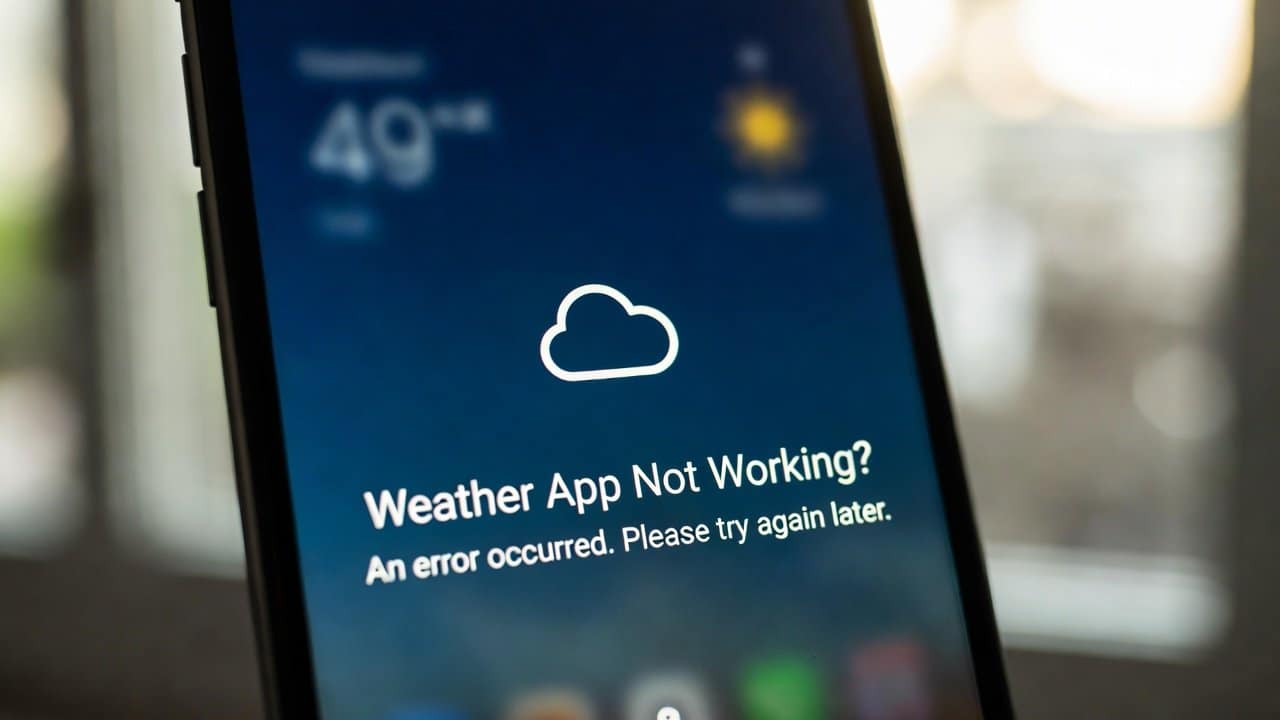
A weather app usually becomes important at the exact moment it stops working. You open it before work, school, a trip, a delivery route, or a weekend plan, and suddenly the screen will not load.
The forecast may look blank. Your location may not update. The widget may show old details. Alerts may not appear when you need them most.
For iPhone users, the first thing to know is this: Apple’s official System Status page currently says all services are operating normally. That means Apple has not officially listed a Weather service outage at the time of writing.
That does not mean your app is fine. It means the issue may be on your device, your settings, your connection, your app version, or a local data refresh delay.
Start With the Fastest Fix
Apple’s own advice for an app that stops responding, closes, or will not open is very direct. Close the app, reopen it, restart your device, check for updates, and if needed, delete the app and redownload it. Apple also notes that deleting an app may remove stored app data.
So, before changing too many settings, do this first:
Close the Weather app fully. Open it again. If it still does not work, restart your iPhone. After that, check the App Store for app updates. If no app update is showing, check whether your iPhone software needs an update.
This solves many small app issues because it gives the app a clean start.
Check Location Settings Next
A weather app is only useful when it knows which place to show. Apple says some apps may not work unless Location Services is turned on. It also explains that you can give location access to each app from Settings, Privacy & Security, then Location Services.
For the Weather app, Apple says Weather uses Location Services to get the forecast for your current location. Apple also says Precise Location can increase forecast accuracy.
Go to Settings, then Privacy & Security, then Location Services. Make sure Location Services is on. Then tap Weather and allow the level of access you want. If your current location is not showing correctly, turn on Precise Location.
If Alerts Are Missing, Check Weather Notifications
If your main problem is missing rain or severe weather alerts, the app may not be broken. Notifications may simply be off.
Apple says you can turn on Weather notifications inside the Weather app by opening the location list, tapping the More button, then Notifications. From there, you can turn on Severe Weather and Next-Hour Precipitation for your current location or saved locations.
Apple also says Precise Location helps provide more accurate notifications for your current location. For this, go to Settings, Privacy & Security, Location Services, Weather, choose Always, then turn on Precise Location.
This is worth checking before assuming the whole app is down.
Some Weather Features Are Not Available Everywhere
Another reason the Weather app may look incomplete is feature availability. Apple says some Weather app features, including severe weather alerts, air quality, next-hour precipitation, and news, are not available in all countries and regions.
Apple also says next-hour precipitation maps are available in the United States, along with a few other countries. Temperature and precipitation map data is provided by Apple Weather, unless Apple states otherwise for older software versions.
So, if one feature is missing but the rest of the app works, it may be a feature issue, not a full app failure.
What About Weather Data Delays?
Some apps and services use weather data from official weather sources. The National Weather Service API page currently lists no significant known issues, but it also says observations may be delayed up to 20 minutes because of quality control processing from its upstream source.
That matters because “not working” can sometimes mean “not updating right away.” A short delay does not always mean the app has failed.
Conclusion
When your weather app is not working, do not panic or keep refreshing the same blank screen. Start with the official checks. Apple has not listed a Weather outage on its System Status page at the time of writing.
Then move through the basics: close and reopen the app, restart your device, check updates, review Location Services, turn on Precise Location, and check Weather notifications.
Most issues come down to access, updates, or a temporary data delay. Once those are fixed, your forecast, alerts, and location details should be much easier to trust again.